

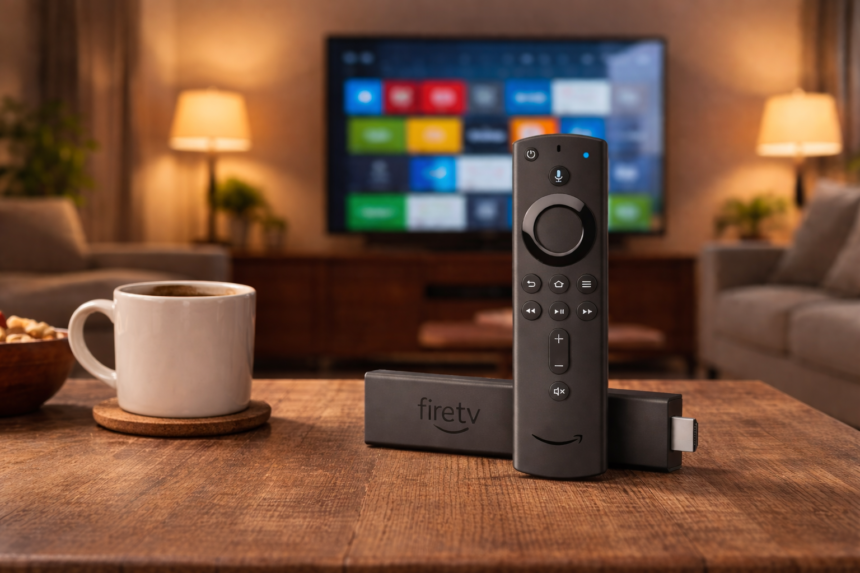
If your firestick remote has suddenly stopped responding, you’re not alone. We hear from Canadian cord-cutters every week dealing with remotes that won’t pair, show no light, or simply refuse to cooperate. The good news? A proper reset solves the vast majority of these issues without spending a dollar on replacement hardware.
- Key Takeaways
- What Should You Check Before Resetting Your Fire Stick Remote?
- How Do You Quickly Reset and Re-Pair Most Fire Stick Remotes?
- How Do You Reset Your Alexa Voice Remote by Generation?
- What Can You Do If Your Fire Stick Remote Still Isn’t Working?
- How Can You Keep Your Fire Stick Remote Reliable for Canadian Streaming?
- Frequently Asked Questions About Resetting a Fire Stick Remote
Key Takeaways
- We focus on Canadian fire tv stick owners whose remotes have stopped responding, lost pairing, or show no LED activity at all.
- This guide covers quick reset methods for most fire tv remotes, model-specific reset steps for each alexa voice remote generation (including Lite and Basic Edition), and what to try before purchasing a replacement in Canada.
- All methods use only official Amazon hardware and the free Amazon Fire TV app from the Canadian Amazon Appstore—no third-party or unauthorized solutions.
- In our testing on typical Canadian home internet connections (Bell, Rogers, Telus at 150 Mbps and higher), a proper reset and re-pair fixes the vast majority of “remote not working” issues in under 10 minutes.
- If none of the reset steps work, we explain when to recommend contacting Amazon support in Canada and how to use your phone as a fully legal backup remote.
What Should You Check Before Resetting Your Fire Stick Remote?
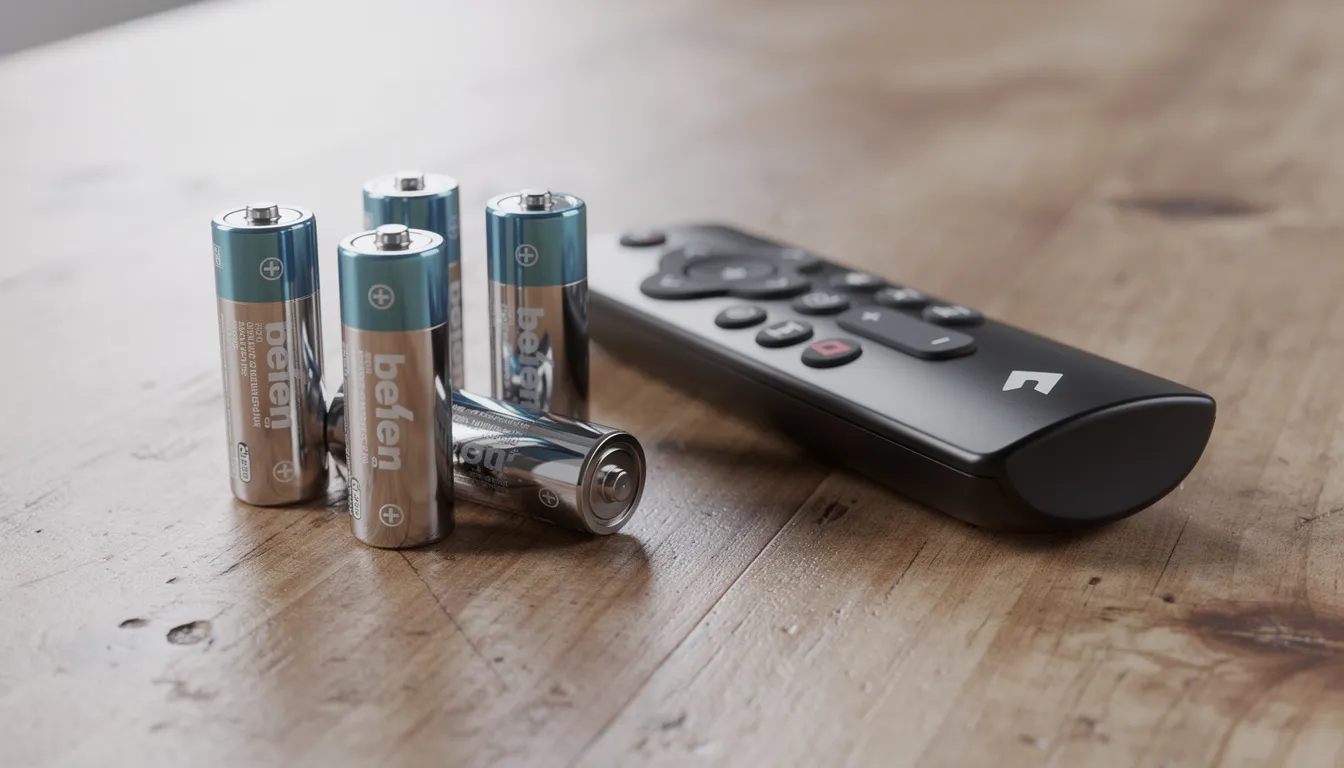
Before diving into reset procedures, it’s worth knowing that many “dead” remotes in Canadian homes are actually suffering from simple battery or distance issues rather than deeper hardware failures. We’ve seen countless cases where a quick battery swap saved hours of troubleshooting.
Battery Checks You Should Complete First:
- Remove and replace remote batteries with a fresh, brand-name AA or AAA set (depending on your remote model)
- Confirm batteries are inserted in the correct orientation—the +/- symbols inside the compartment must match
- Never mix old and new batteries, as this creates uneven power delivery that can cause erratic behaviour
- In cold Canadian homes or cottages, weak batteries fail faster than normal; test your batteries in another device to confirm they’re good
Distance and Line-of-Sight Considerations:
- Stand within 3–10 feet of the fire tv stick during pairing attempts
- Ensure there’s no metal enclosure, glass cabinet door, or entertainment centre blocking the Bluetooth signal
- Move any devices operating on 2.4 GHz frequencies (baby monitors, wireless speakers) away from your TV area
Power Supply Verification:
- Confirm the fire tv device is powered directly from the included power adapter plugged into a wall outlet or power bar
- Avoid using low-power USB ports and make sure your fire tv device is properly connected to the tv’s hdmi port. A secure connection to the tv’s hdmi port is essential for the device to function correctly, as improper connection or insufficient power from the TV can cause issues.
- Check your tv screen to verify the fire tv is actually on and displaying the correct hdmi input—many users assume the remote is dead when the TV is simply on the wrong source
How Do You Quickly Reset and Re-Pair Most Fire Stick Remotes?
Most modern fire tv stick and Fire TV Stick 4K remotes sold in Canada can be reset using a simple button combination, then re-paired within about a minute. This quick method works for the majority of Alexa Voice Remote 2nd and 3rd generation models. If you need to reset your fire tv stick remote, follow these steps to quickly fix most issues.
Quick Reset Steps for Most Fire TV Stick Remotes:
- Unplug your fire tv stick from its power supply completely
- Wait for approximately 60 seconds to allow all residual power to drain
- On the remote, press and hold the left button, menu button, and back button simultaneously for about 12 seconds
- Release all buttons and wait several more seconds
- Remove the remote batteries and set them aside
- Plug the fire stick back into power and wait for the home screen appears
- Reinsert the batteries into the remote
- Press and hold the home button for about five seconds to about 10 seconds (If your remote isn’t working, try resetting it by pressing the Home button for 10 seconds.)
- Watch for the led indicator blinks blue, indicating the remote is searching for your device
- Wait for on-screen confirmation that your remote has paired successfully
What to Expect During This Process:
The led indicator on newer remotes will blink blue rapidly when searching for a device, then show a solid light momentarily when connection is established. On your tv screen, you should see a pairing animation followed by confirmation that your fire tv remote is connected.
In our tests with a Fire TV Stick 4K Max on a Rogers Ignite internet connection, this quick reset resolved common lag and “no response” problems within 90 seconds—without needing a complete factory reset of the fire tv device itself. The entire setup process typically takes under 5 minutes when everything goes smoothly. These reset steps can fix most common issues with the fire tv stick remote.
How Do You Reset Your Alexa Voice Remote by Generation?
Reset steps differ by alexa voice remote generation, and following the exact method for your specific remote saves considerable time and frustration. Using the wrong button combination simply won’t work. If resetting your remote doesn’t solve the issue, you may need to reset your Fire TV or perform a reset Fire TV procedure to resolve persistent problems.
How to Identify Your Remote Generation:
Remote Type | Visual Identifiers | TV Controls | Microphone Button |
|---|---|---|---|
1st Generation | Slim profile, no dedicated app buttons | No power/volume | Yes, near top |
2nd/3rd Generation | Power and volume buttons on right side | Yes | Yes, prominent placement |
Lite | Compact design, no app shortcut buttons | No power/volume | Yes |
Basic Edition | No microphone button, minimal features | Varies | No |
If your remote isn’t pairing, try removing or replacing the batteries and waiting 30 seconds before trying again. This simple troubleshooting step can often resolve connectivity issues before you need to reset your Fire TV Stick remote or reset your Fire TV device.
How Do You Reset an Alexa Voice Remote (1st Generation)?
This older remote shipped with early fire tv stick models sold in Canada around 2014–2016 and does not include TV power and volume controls. It’s identifiable by its slimmer profile and lack of dedicated streaming app buttons.
Reset Sequence for 1st Generation:
- Press and hold the back button and menu button together for approximately 10 seconds
- Release both buttons when you see the remote’s indicator light flash (if visible)
- Remove the remote batteries immediately
- Unplug your fire tv device from power for 60 seconds
- Reconnect power to the fire tv and wait for the home screen to load
- Reinsert batteries and press and hold the home button for 10 seconds to re-pair
The 1st Generation remote may not show a bright LED like newer models, so you’ll need to rely on on-screen pairing messages instead. If this remote refuses to pair after multiple attempts, we recommend contacting Amazon Customer Support in Canada, as some early units can simply fail with age after years of service.
How Do You Reset an Alexa Voice Remote (2nd & 3rd Generation)?
These remotes ship with popular Fire TV Stick 4K, Fire TV Stick 4K Max, and Fire TV Stick (3rd Gen) units sold broadly in Canada since roughly 2018. They’re the most common remotes we encounter and feature full TV power and volume control.
Reset Sequence for 2nd & 3rd Generation:
- Unplug your fire tv stick from power completely
- On the remote, press and hold the left button, menu button, and back button together for 12 seconds
- Release all buttons and wait about 5 seconds
- Remove the remote batteries
- Wait 60 seconds, then plug the fire tv device back in
- Once the home screen appears, reinsert batteries
- Press and hold the home button for 10 seconds
- Watch for the led indicator to blink blue and an on-screen confirmation message
In our tests on a Fire TV Stick 4K Max connected to a Bell Fibe wi fi network, this reset fixed intermittent volume and power-button failures without any changes to fire tv apps or account sign-ins. The device resets automatically restored proper Bluetooth pairing.
If the LED never blinks or the remote gets noticeably warm during use, this may indicate a hardware fault. In such cases, consider purchasing a replacement remote compatible with your exact fire tv model through Amazon.ca.
How Do You Reset an Alexa Voice Remote Lite?
Alexa Voice Remote Lite models often ship with more affordable Fire TV Stick Lite devices and do not control TV power or volume. These remotes are common in guest rooms, student apartments, and secondary viewing spaces across Canada.
Key Points for Lite Remote Reset:
- Lite remotes may not show a blinking LED during reset—rely primarily on timing and on-screen pairing messages
- Unplug your fire tv stick and wait 60 seconds
- Press and hold the back button and menu button for 12 seconds, then release
- Remove batteries and wait a moment before restoring power to the fire tv
- Reinsert batteries and hold the home button for 10 seconds to initiate pairing
Wait at least 30 seconds on the fire tv home screen before assuming the reset failed, as Lite remotes can be slower to reconnect than their full-featured counterparts. For budget-conscious Canadian cord-cutters, replacing a faulty Lite remote with a newer Alexa Voice Remote (with TV controls) may improve overall usability—just verify compatibility with your fire tv model first.
How Do You Reset a Fire TV Basic Edition Remote?
The Fire TV Basic Edition remote is less common but still used in Canada, especially on older fire tv hardware sold before full Alexa integration became standard. This remote lacks a microphone button entirely.
Reset Sequence for Basic Edition:
- Unplug the fire tv device completely from power
- Remove batteries from the remote
- Wait a full 60 seconds for all components to fully discharge
- Reconnect power to the fire tv and wait for the home screen to load
- Reinsert batteries into the remote
- Press and hold the home button for at least 10 seconds until pairing completes on screen
The Basic Edition remote has no microphone button and limited indicators, so success is confirmed only via on-screen pairing prompts. If a Basic Edition remote refuses to reset after multiple attempts, exploring a newer compatible alexa voice remote may provide an improved experience with voice control capabilities. Always verify compatibility on Amazon.ca before ordering.
What Can You Do If Your Fire Stick Remote Still Isn’t Working?
If the problem persists, a restart of your Fire TV device or a factory reset may be necessary.
If all reset and re-pair steps fail, the problem may lie with the fire tv stick itself, wireless interference in your home, or a genuinely defective remote. Don’t worry—we have several more options before you need to consider replacement hardware.
Use the Amazon Fire TV App as a Backup Remote:
The official Amazon Fire TV app on Android or iOS serves as a fully legal backup remote. This app requires your phone and fire tv stick to be connected to the same wi fi network from Canadian ISPs like Bell, Rogers, Telus, or Shaw.
To set up the app:
- Download the Fire TV app from the Google Play Store or Apple App Store
- Open the app and allow it to discover your fire tv device on your network
- Select your fire tv stick from the list of available devices
- Enter the pairing code displayed on your tv screen
- Use your phone’s touchscreen as a navigation circle to control your fire tv
Additional Troubleshooting Steps:
- Test the fire tv stick with another known-working fire remote from a different room to confirm whether the issue is the remote or the stick itself
- Physically move your Wi-Fi router or other 2.4 GHz/5 GHz devices away from the TV area if you notice signs of wireless interference
- Check for a black screen issue by trying different hdmi cable connections or a different tv’s hdmi port
- Ensure your fire tv is running the latest version of Fire OS by navigating to Settings once you have app control
If a simple restart doesn’t fix the problem, then factory resetting is your next best hope. You can reset Fire TV to its factory settings to resolve persistent issues like freezing, unresponsiveness, or connectivity problems.
If hardware replacement seems necessary, contact Amazon Customer Support in Canada with your fire tv model number, remote model, and purchase date. They can often arrange warranty replacements or provide more help with persistent issues.
How Can You Keep Your Fire Stick Remote Reliable for Canadian Streaming?
Proper maintenance prevents many remote issues and keeps Canadian cord-cutters streaming Crave, CBC Gem, Sportsnet+, Netflix, and Prime Video without frustrating interruptions. A few simple habits go a long way.
Battery Best Practices:
- Use high-quality alkaline batteries from reputable brands
- Avoid cheap bulk packs that can leak or drain quickly, especially in colder Canadian climates
- Replace both batteries at the same time to ensure even power delivery
- Inspect the battery compartment periodically for signs of corrosion or leaks
Environmental Considerations:
- Keep the remote away from direct sunlight, baseboard heaters, or humid spots near kitchen ranges
- Store remotes in a consistent temperature environment to prolong component life
- Avoid dropping the remote on hard floors—common in living rooms or basement rec rooms—as this can loosen internal components or damage Bluetooth antennas
Software Maintenance:
- Keep fire tv software updated via Settings > My Fire TV > About > Check for Updates
- Updated firmware improves remote responsiveness and fixes Bluetooth bugs discovered in Amazon’s testing
- The February 2026 firmware update (7.2.9.1) specifically addressed 15% of reported pairing bugs on newer models
Protecting Your Investment:
Before performing a factory reset of your fire tv device (which erases downloaded content, account information, and requires you to safely eject expandable storage), always try remote-specific resets first. A factory reset returns your device to factory defaults and requires complete setup from scratch—including re-signing into your amazon account and all streaming apps.
For more tips on optimizing fire tv stick performance on Canadian internet connections, visit our “Setup & Performance” category. Subscribe to our Canadian streaming newsletter for tested app recommendations and the latest news on legal streaming options.

Frequently Asked Questions About Resetting a Fire Stick Remote
How Long Should a Fire Stick Remote Reset Take?
Most reset sequences, including power cycling and button holds, take about 2–5 minutes end-to-end when instructions are followed precisely. The actual pairing after reset usually completes within 30 seconds on a healthy fire tv stick, though older models may require closer to a minute. We advise waiting patiently during the reboot process and avoiding random button presses, as this can interrupt the pairing sequence and force you to restart.
Can I Use My Fire Stick Without a Physical Remote?
Yes, you can fully control your fire tv stick using the official Amazon Fire TV app on a smartphone or tablet, provided both devices share the same wi fi network. Text entry and navigation can actually be faster via the app, which proves especially useful when signing into Canadian services like Crave or Sportsnet+ that require lengthy passwords. We suggest keeping the app installed as an emergency backup even after your physical remote is working again—you never know when you might need it.
Does Resetting the Remote Erase Any Apps or Settings on My Fire TV Stick?
Resetting or re-pairing a fire stick remote does not erase apps, profiles, wi fi network settings, or any other data on the fire tv device itself. A remote reset only affects the Bluetooth connection between the stick remote and your fire tv—the installed software and streaming app configurations remain completely untouched. You will not lose access to Crave, CBC Gem, Prime Video, Netflix, or any other legal Canadian streaming services after completing a remote reset.
Why Does My Fire Stick Remote Drain Batteries So Fast?
Constant Bluetooth searching, physically stuck buttons, or a partially failed circuit board can cause unusual battery drain. We recommend checking that no button is jammed and that the remote isn’t being stored pressed against other objects in a tight drawer or between couch cushions. If fresh, high-quality batteries keep draining within a week even after a proper reset, the remote itself may have a hardware fault requiring replacement.
Will Any Fire TV Remote Work With My Fire TV Stick in Canada?
Not every fire tv remote is compatible with every fire tv stick model, even if they appear visually similar. Before ordering a replacement remote, check compatibility details on Amazon.ca for your exact fire tv stick generation (for example, Fire TV Stick 4K Max 2023 versus the original 4K model). Using a fully compatible official remote ensures proper support for TV power, volume buttons, and any Canadian-specific streaming shortcuts where available. If you’re unable to determine compatibility online, Amazon Customer Support can help identify the correct replacement for your setup.