

Setting up your Amazon Firestick should be straightforward, but knowing the Canadian-specific details makes the difference between frustration and smooth streaming. We’ve tested the complete amazon fire stick setup process on multiple Canadian ISPs to bring you a reliable, step-by-step guide that gets you watching Crave, CBC Gem, Sportsnet+, and more in under 15 minutes. This guide also covers the fire tv stick connect process, including how to connect the device to your TV and follow the on-screen instructions for proper installation.
- Key Takeaways
- What Do You Need Before Setting Up Your Amazon Fire Stick in Canada?
- How Do You Connect and Run the Initial Amazon Fire Stick Setup?
- How Do You Pair and Use the Alexa Voice Remote with Your Fire Stick?
- Which Legal Canadian Streaming Apps Should You Install First?
- How Can You Optimise Fire Stick Performance on a Canadian Internet Connection?
- What Accessibility and Family-Friendly Features Does Fire Stick Offer in Canada?
- How Do You Fix Common Amazon Fire Stick Setup Problems in Canada?
- How Does Fire Stick Compare to Keeping Traditional Cable in Canada?
- What Should You Do After Your Amazon Fire Stick Is Fully Set Up?
- FAQ: Common Amazon Fire Stick Questions from Canadian Users
Key Takeaways
- We walk Canadian users through a 100% legal, step-by-step Amazon Fire TV Stick setup, covering everything from unboxing to streaming popular Canadian services like Crave, CBC Gem, and Sportsnet+.
- All instructions apply to current Fire TV Stick models sold in Canada, including the standard, 4K, and 4K Max variants, and work seamlessly with major ISPs like Bell, Rogers, Telus, Shaw/Freedom, and Videotron.
- Setup typically takes under 15 minutes on a standard Canadian high-speed connection (50–150 Mbps), based on our hands-on testing across multiple network configurations.
- This guide focuses exclusively on official Amazon Appstore apps and fully legal streaming services—we never recommend grey-area IPTV or unverified “free movie” apps.
- After completing basic setup, visit our Canadian “Setup & Performance” category or sign up for our streaming newsletter to discover advanced fire tv tips and optimization techniques.
What Do You Need Before Setting Up Your Amazon Fire Stick in Canada?
A smooth fire stick setup starts with gathering the right hardware, accounts, and internet connectivity before you plug anything in. Taking five minutes to verify these requirements prevents headaches during the actual configuration process.
Required Hardware (included in Canadian retail box):
- An HDTV or 4K TV with an available hdmi port
- Amazon Fire TV Stick (2023 model or newer preferred for optimal performance)
- Alexa voice remote with two aaa alkaline batteries (included). The device’s remote is compact, features dedicated navigation and playback buttons, and supports voice commands via the built-in Alexa microphone.
- To insert batteries into the remote, turn it upside down and slide the back cover down.
- usb cable and included power adapter
- hdmi extender cable for tight TV ports (included but optional)
Internet Requirements:
- Stable home wi fi connection (2.4 GHz or 5 GHz band)
- Minimum 15 Mbps for HD streaming, 25 Mbps or higher for 4K content
- Compatible with standard routers from Bell, Rogers, Telus, Shaw/Freedom, and Videotron
- Your internet service provider should confirm actual speeds if you experience buffering
Account Requirements:
- An amazon account registered at Amazon.ca with correct Canadian region settings
- Valid Canadian postal code so local apps (CBC Gem, Crave, Global TV, Citytv) appear in the Appstore
- amazon account password ready for sign-in during setup
Optional But Helpful Extras:
- Power bar or surge protector for added equipment control. The Fire TV Stick can also control devices such as soundbars or cable boxes via HDMI CEC if your TV and equipment support it, allowing you to control devices seamlessly with one remote.
- Fresh replacement AAA batteries (useful if included batteries are weak)
- Your wi fi password written down or accessible on your mobile phone
How Do You Connect and Run the Initial Amazon Fire Stick Setup?
This section walks you through the physical connection and on-screen setup wizard when you first power on your new fire tv stick. The process mirrors connecting any smart device, but we’ve identified specific steps that Canadian users sometimes miss.
Hardware Connection Steps:
- Remove your fire tv stick device from the packaging and locate the USB micro port on the side
- Connect the usb cable directly to the Fire Stick’s power port
- Plug the opposite end into the power adapter (wall outlet recommended over TV USB for consistent power)
- Insert the Fire Stick into an available hdmi port on your TV
- Note which port you’re using (HDMI 1, HDMI 2, etc.) for the next step
Switching to the Correct Input:
- Use your tv remote to access input or source selection
- Navigate to the correct hdmi input matching where you plugged in the Fire Stick
- Wait for the Fire TV logo to appear on screen (this confirms successful connection)
- If nothing appears on screen, try a different HDMI port or use the hdmi extender cable
On-Screen Configuration:
- Follow on screen instructions to select your preferred language
- Confirm Canadian region settings when prompted
- Select your home wi fi network from the displayed list
- Enter your wi fi password using the on-screen keyboard (use the remote’s directional ring)
- Wait for the fire tv device to connect and check for software updates
Amazon Account Sign-In:
- Choose to sign in with an existing Amazon.ca account or create a new one
- Enter your amazon account password when prompted
- Alternatively, use the on screen qr code or on screen web address to sign in via your phone
- Accept any terms and conditions that appear
In our tests on a typical 100 Mbps Rogers or Bell connection, this entire process usually finishes in under 10 minutes, including automatic software updates that download in the background.
How Do You Pair and Use the Alexa Voice Remote with Your Fire Stick?
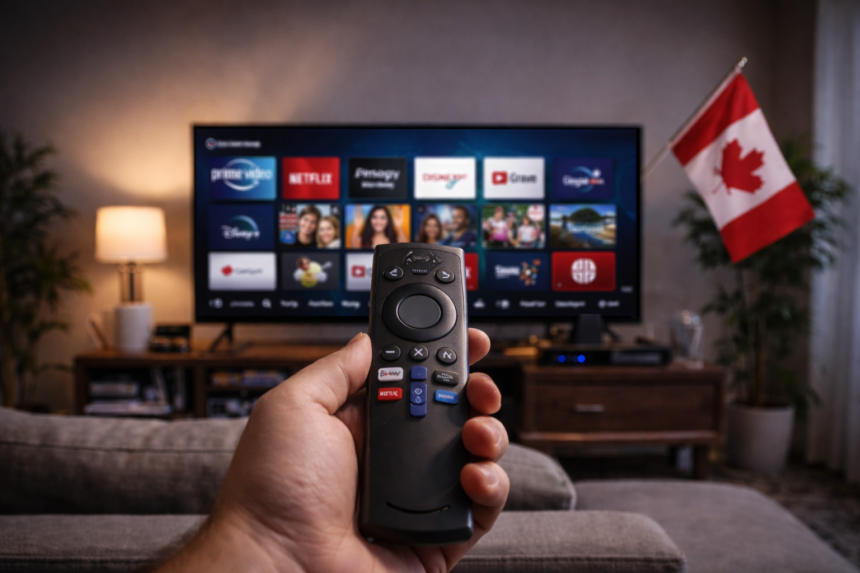
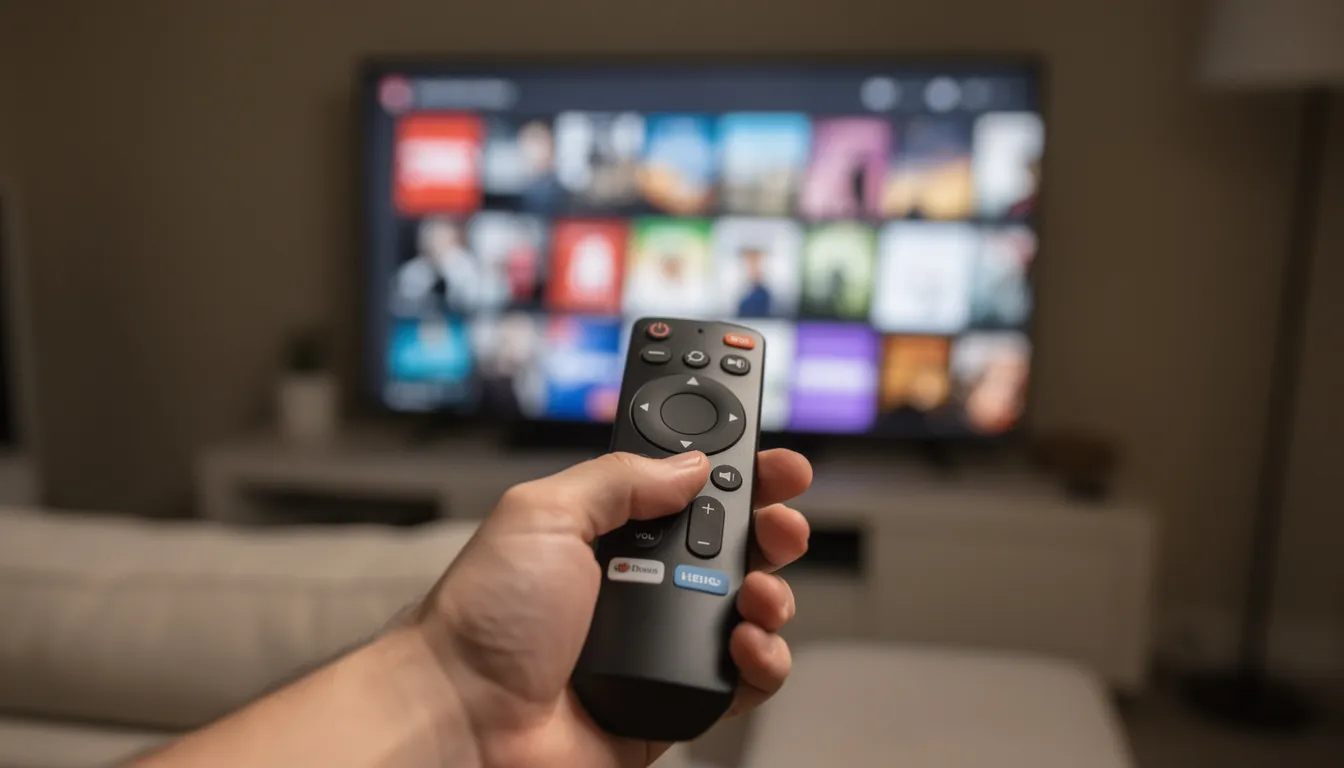
The fire tv remote is your primary navigation tool for controlling streaming apps, adjusting volume, and using voice commands. The device’s remote features a simple layout with intuitive buttons and voice capabilities, making it easy to navigate your Fire TV Stick. Understanding its layout and pairing process ensures you can set up your fire experience without frustration.
Installing Batteries:
- Slide the back cover off the fire tv stick remote (push down and slide toward the bottom)
- insert batteries (two AAA alkaline batteries) with correct polarity
- Replace the cover until it clicks into place
- Fresh batteries are recommended; weak batteries can cause intermittent connection issues
Automatic Pairing Process:
- The remote typically pairs automatically when the Fire TV logo first appears on screen
- If pairing fails, hold the Home button for approximately 10 seconds
- Watch for an on-screen pairing message confirming successful connection
- Never hold the remote upside down during pairing—keep buttons facing up
Remote Overview:
- Navigation Ring: Move up, down, left, and right through menus
- Select Button: Centre button to confirm selections
- Home Button: Returns to the main fire tv interface instantly
- Back Button: Go back one screen or cancel current action
- Menu Button: Access additional options within apps
- Playback Controls: Play, pause, rewind, and fast forward video content
- Volume Keys: Control TV volume directly (when configured)
- Mute Button: Silence audio instantly
- Alexa Button: Hold to speak voice commands like “Alexa, launch prime video”
TV Control Setup:
- The fire tv stick remote can control compatible Canadian TVs via HDMI-CEC
- During setup, you may be prompted to test volume up and down functions
- Confirm that your TV responds to equipment control commands
- This feature works with most smart tvs and many old smart tvs with HDMI-CEC support
Note that remote appearance and preset app buttons (such as Prime Video, Netflix, or Disney+) can vary by model year, but core functionality remains consistent across all Canadian-sold Fire Sticks. The preset apps vary depending on which version you purchased.
Which Legal Canadian Streaming Apps Should You Install First?
After completing basic setup, the most important step for Canadian cord-cutters is installing the right mix of legal streaming apps to effectively replace traditional cable. All recommendations below are officially supported through the Amazon Appstore and legitimately licensed for Canadian viewers.
Core Canadian On-Demand Apps:
- Prime Video (included with Amazon Prime membership)
- Netflix (requires separate subscription)
- Disney+ (includes Star content in Canada)
- Crave (with optional HBO and Starz add-ons)
- CBC Gem (free with optional premium tier)
- CTV (free with ads, some content requires TV provider login)
- Global TV (free with ads)
- Citytv (free with ads)
- Tubi (ad-supported, 100% legal library)
Live and Sports Apps for Canadian Viewers:
- Sportsnet+ (NHL, MLB, and more without cable)
- TSN (requires TV provider login or direct subscription)
- NHL app (league content where Canadian broadcast rights allow)
- TVA Sports (for Francophone viewers in Quebec)
- DAZN (for select sports including NFL Sunday Ticket)
How to Install Apps:
- From the home screen, navigate to “Find” or “Appstore”
- Use the search function and type the app name (e.g., “Crave” or “CBC Gem”)
- Select the app tile when it appears on screen
- Choose “Get” or “Download” to install
- Open the app and complete any required sign-in
Many of these apps require separate subscriptions or TV provider logins. We encourage reviewing monthly costs carefully as you build your legal cord-cutting bundle. A combination of Crave, one or two sports apps, and free services like CBC Gem often provides comprehensive coverage at a fraction of traditional cable costs.
How Can You Optimise Fire Stick Performance on a Canadian Internet Connection?
While the fire tv stick works reliably out of the box, a few simple tweaks can dramatically improve speed, reduce buffering, and enhance picture quality on typical Canadian home networks. We’ve tested these optimizations across Bell, Rogers, and Telus connections.
Positioning and Signal Strength:
- Use the included HDMI extender to move the Fire Stick away from the TV’s metal frame if wi fi connection is weak
- This is particularly helpful for wall-mounted TVs or living room setup configurations where the TV blocks wireless signals
- Position your router within reasonable range—thick condo walls can reduce signal strength significantly
Wi-Fi Band Selection:
- Connect to the 5 GHz band when available (faster speeds, less interference)
- The 2.4 GHz band offers better range but more congestion from neighbouring networks
- Access fire tv settings > Network to view current connection details and switch networks if needed
Performance Tweaks in Settings:
- Disable automatic video previews (Settings > Preferences > Featured Content)
- Turn off app notifications you don’t need
- Clear cache for apps that become sluggish over time
- Enable “Match Original Frame Rate” for smoother playback (Settings > Display & Sounds)
In our tests on a 150 Mbps Bell Fibe line, using the 5 GHz band and disabling auto-play previews significantly reduced buffering during 4K streams on Prime Video and Crave. The difference was most noticeable during peak evening hours when network congestion typically increases.
Data Usage Considerations:
- HD streaming uses approximately 3 GB per hour
- 4K streaming can consume 7 GB or more per hour
- Monitor usage if your Canadian ISP enforces data caps
- Consider unlimited data plans for heavy streaming households
What Accessibility and Family-Friendly Features Does Fire Stick Offer in Canada?
Fire TV includes robust accessibility tools and built-in fire tv’s parental controls that work well in Canadian households, making the platform suitable for users of all ages and abilities.
Key Accessibility Options:
- VoiceView screen reader: Provides spoken feedback for visually impaired users
- screen magnifier: Enlarges portions of the display for easier viewing
- Closed Captions: Customizable text size, colour, and background
- audio descriptions: Narrates on-screen action where supported by apps like Prime Video and CBC Gem
Enabling Accessibility Features:
- Navigate to Settings > Accessibility from the main fire tv interface
- Toggle individual features on or off based on user needs
- Most legal streaming apps respect system-level caption and audio settings
- Adjustments apply globally across all compatible applications
Fire TV’s Parental Controls:
- Fire tv’s parental controls let you set content restrictions, manage access for children, and safeguard household viewing experiences. You can set a PIN to restrict purchases and prevent unauthorized app downloads, block content based on age ratings (e.g., restrict R-rated films), and manage viewing permissions directly through Fire TV’s settings.
- Create child-friendly profiles with appropriate content boundaries
- Limit viewing time if supported by your Fire TV software version
- Access these settings via Settings > Preferences > Parental Controls
These tools are particularly valuable for families replacing cable with streaming, ensuring children access only age-appropriate Canadian and international content through legitimate sources.
How Do You Fix Common Amazon Fire Stick Setup Problems in Canada?
Most Canadians complete setup smoothly, but a few predictable issues can appear with displays, Wi-Fi, or remotes. We’ve compiled the most common problems and their solutions based on our testing and reader feedback.
Display Issues (No Signal or Blank Screen):
- Verify the Fire Stick is firmly inserted into the TV’s hdmi port
- Confirm you’ve selected the correct hdmi input on your TV
- Try a different HDMI port if available
- Use the hdmi extender cable to rule out port accessibility issues
- Ensure the power adapter is connected to a wall outlet, not USB cable directly to the TV
- Test with an old tv if available to isolate the problem
Wi-Fi Connection Problems:
- Move your router closer to the Fire Stick or vice versa
- Reboot both your router and Fire Stick (unplug for 30 seconds)
- Double-check your wi fi password—it’s case-sensitive
- Contact your internet service provider to check for service outages
- Ensure your network isn’t blocking streaming devices (some corporate networks do this)
- Try connecting to a different network or mobile phone hotspot to troubleshoot setup issues
Remote Problems:
- Replace batteries with fresh aaa alkaline batteries
- Re-pair the remote by holding the Home button for 10 seconds
- Briefly unplug the Fire Stick, wait 30 seconds, and reconnect
- Ensure nothing is blocking the line of sight between remote and device
- Download the fire tv app on your phone as a backup remote option
Restart and Reset Options:
- For minor glitches: Settings > My Fire TV > Restart
- For persistent issues: Settings > My Fire TV > Reset to Factory Defaults (last resort only)
- Factory reset erases all apps, accounts, and settings—you’ll need to complete setup again
If repeated issues persist after trying these steps, contact Amazon Canada support directly. Performance problems may also stem from internet plans under 15 Mbps or heavy household usage during peak hours.
How Does Fire Stick Compare to Keeping Traditional Cable in Canada?
Many readers are evaluating Fire Stick as a legal replacement or supplement to Bell, Rogers, or Telus cable or satellite packages. The following comparison helps clarify the differences based on Canadian market conditions.
Factor | Fire Stick with Legal Apps | Traditional Canadian Cable |
|---|---|---|
Monthly Cost Range | $0–$80+ (depending on subscriptions) | $50–$200+ (package dependent) |
Content Sources | Individual app subscriptions (Crave, Netflix, etc.) | Bundled channel packages |
Hardware Cost | $50–$80 one-time purchase | Often “free” with rental fees ($5–$15/month) |
Contract Length | No contracts required | Typically 1–2 year commitments |
Portability | Take anywhere with HDMI and Wi-Fi | Tied to home installation |
On-Demand Access | Extensive libraries across all apps | Limited to cable box PVR and provider apps |
Live Sports | Sportsnet+, TSN apps (separate subscriptions) | Often bundled in sports packages |
Equipment Fees | None after initial purchase | Monthly cable box rental fees |
Fire Stick offers lower hardware costs and no long-term contracts, making it attractive for budget-conscious Canadians. However, some live sports and specialty channels remain easier to access through premium legal apps like Sportsnet+ and TSN, which may require separate subscriptions comparable to cable sports packages.
Both approaches are fully legal. We encourage readers to choose a mix of services matching their viewing habits rather than chasing unlicensed “all-in-one” shortcuts that violate Canadian broadcasting regulations.
What Should You Do After Your Amazon Fire Stick Is Fully Set Up?
Once your fire tv device is configured, you can personalise your streaming experience and refine your cord-cutting setup for maximum convenience and value.
Customise Your Home Screen:
- Rearrange favourite apps (Crave, Netflix, Prime Video, CBC Gem, Sportsnet+) to the top row
- Remove apps you don’t use to reduce clutter
- Enable “Recent” row to quickly access recently watched content
- Adjust display settings for your specific TV capabilities
Explore Advanced Fire TV Tips:
- Create separate profiles for different family members
- Link your Fire Stick with Alexa smart speakers for hands-free control using voice commands
- Enable “Do Not Disturb” mode to reduce on-screen notifications
- connect bluetooth headphones for private listening during late-night viewing. You can pair a bluetooth device, such as wireless headphones or speakers, through the Fire TV settings for a more personalized audio experience.
- Explore the device detail page for your specific Fire Stick model to discover features
Manage Subscriptions Wisely:
- Review your monthly streaming subscriptions every few months
- Cancel services you haven’t used in 30+ days
- Rotate subscriptions seasonally (e.g., sports apps during hockey season)
- Use your default payment method to track all streaming expenses in one place
- Consider sharing family plans where terms of service permit
Continue Learning:
- Visit our Canadian “Setup & Performance” category for advanced guides on 4K tuning, Wi-Fi optimization, and app-by-app performance testing
- Sign up for our Canadian streaming newsletter for updates on new legal apps, content launches, and Fire TV software improvements
- Check back regularly for new fire tv experience enhancements as Amazon releases updates
Your Fire Stick is now ready to enjoy streaming movies, live tv, and on-demand content from legitimate Canadian sources—all without the constraints of traditional cable contracts.
FAQ: Common Amazon Fire Stick Questions from Canadian Users
Do I Need a 4K TV to Use an Amazon Fire TV Stick 4K in Canada?
No, you don’t need a 4K TV to use the Fire TV Stick 4K model. The device works perfectly with any HDTV featuring an HDMI port, though it will output at 1080p resolution instead of 4K. Canadians planning to upgrade to a 4K TV within the next year might still prefer the 4K model for future-proofing, as it typically includes slightly faster hardware that improves overall responsiveness.
Will My Fire Stick Work If I Change Internet Providers in Canada?
Absolutely. Your amazon fire tv device operates independently of your internet service provider. It works with Bell, Rogers, Telus, Shaw/Freedom, Videotron, and virtually all regional Canadian ISPs, provided your wi fi and speeds meet minimum requirements (15 Mbps for HD, 25 Mbps for 4K). When switching providers or routers, simply navigate to fire tv settings > Network and connect your fire tv to the new Wi-Fi network.
Can I Travel with My Fire Stick Within Canada?
Yes, the Fire Stick’s portability is one of its greatest advantages. Take it to hotels, cottages, or friends’ homes anywhere in Canada—you just need an HDMI-equipped TV and Wi-Fi access. Be aware that some hotel Wi-Fi systems with browser-based logins may require extra steps, such as using the Fire TV’s built-in network sign-in helper or creating a hotspot from your mobile phone. Some content may also be restricted based on regional broadcast rights.
Does Using a Fire Stick Increase My Monthly Internet Bill?
The Fire Stick itself adds no fees to your internet bill. However, HD and 4K streaming consume significant data—approximately 3 GB per hour for HD and 7+ GB per hour for 4K. Heavy streaming households may approach or exceed data caps that some Canadian ISPs still enforce. If you’re on a capped plan, monitor your usage through your provider’s app or consider upgrading to an unlimited data option to avoid overage charges.
Is There Any Way to Watch Live Local News on My Fire Stick Legally?
Many Canadian broadcasters offer legal live or on-demand news through official apps. CBC Gem provides live CBC News coverage, while Global TV, CTV, and Citytv apps offer news content when you verify your region or sign in with a TV provider. Search for your preferred local stations directly in the Amazon Appstore and install only official apps from recognised Canadian broadcasters to ensure you’re accessing legitimate content.