

Finding the right apps for your fire stick shouldn’t feel like navigating a maze. We’ve spent considerable time testing devices across Canadian ISPs to bring you this comprehensive guide to downloading apps on Firestick—completely legally and with maximum performance in mind.
- Key Takeaways
- What Is a Firestick and Why Should Canadians Download More Apps on It?
- Setting Up Your Device for the First Time in Canada
- How to Download Apps on Firestick from the Amazon Appstore (Step-by-Step)
- Enabling Unknown Apps on Your Firestick in Canada
- How to Sideload Apps on Firestick Safely and Legally in Canada
- Which Canadian Streaming Apps Should You Download First on Firestick?
- How Can You Organise and Manage Apps on Your Firestick for Better Performance?
- File Management Tips for Firestick Users in Canada
- Compatibility with Other Devices: Using Firestick with Your Smart Home and More
- Customizing the Experience: Personalizing Your Firestick in Canada
- What Legal and Privacy Considerations Should Canadians Keep in Mind When Downloading Apps?
- How to Optimise Your Firestick Apps for Smoother Streaming in Canada
- Troubleshooting Common Issues with Firestick Apps in Canada
- Device Maintenance: Keeping Your Firestick Running Smoothly
- Frequently Asked Questions About Downloading Apps on Firestick in Canada
- Introduction to Fire TV
- Advanced Tips for Power Users in Canada
- Conclusion and Next Steps
- Additional Resources for Canadian Firestick Users
- Final Checklist for Downloading Apps on Firestick in Canada
The Fire TV Stick comes with a remote included, making navigation and app installation easy for all users.
Key Takeaways:
- Downloading and using apps on Firestick is straightforward and legal when following Amazon’s guidelines.
- By downloading and using apps on Firestick, you agree to amazon’s conditions, which include Amazon’s policies and privacy notices. These are referenced and linked in the Fire TV app interface, outlining the terms and privacy practices you accept as a user.
Key Takeaways
- Open the Fire TV home screen, go to “Find > Search”, type the app name (for example, “Crave”, “CBC Gem”, “Sportsnet”), and click install directly from the amazon app store.
- Only download apps from the official Amazon Appstore or other verified legal platforms; avoid any “free movie” or IPTV apps that aren’t clearly licensed in Canada.
- Most major Canadian streaming services (Crave, CBC Gem, CTV, Global TV, Citytv, Sportsnet+, TSN, Prime Video, Netflix, Disney+) have official fire tv apps that work well on Bell, Rogers, Telus, and other major ISPs.
- In our tests on a typical Canadian 300 Mbps cable connection, Firestick 4K Max handled legal 4K streaming smoothly once apps were installed and auto-updates were enabled.
- This guide includes concise step-by-step instructions, a detailed comparison table of must-have Canadian apps, and links to our Setup & Performance guides and newsletter.
- By downloading and using apps on Firestick, you agree to Amazon’s Conditions of Use.
What Is a Firestick and Why Should Canadians Download More Apps on It?
The fire tv stick is an affordable streaming device that plugs directly into your TV’s HDMI port, effectively replacing traditional cable boxes for Canadian households. For under $70 CAD, you gain access to thousands of streaming services, live channels, and on-demand content without expensive monthly cable fees.
When we talk about downloading apps on Firestick, we mean installing official streaming, sports, news, and utility applications from the amazon app store—no technical hacking or complicated workarounds required. The process takes a few seconds and works identically whether you’re on Bell Fibe, Rogers Ignite, Telus PureFibre, Shaw, Videotron, or any smaller Canadian ISP.
Key benefits of expanding your Firestick app library:
More Read
- Save hundreds annually by replacing cable packages with targeted streaming subscriptions
- Access on-demand content libraries with thousands of shows and movies
- Stream in HD, 4K, HDR10+, and Dolby Vision on compatible models
- Set up parental controls and family profiles for household safety
- Use voice search with Alexa for hands-free navigation
This guide focuses exclusively on 100% legal apps and services available in Canada. We’re writing for Canadian cord-cutters who want reliable, high-performance setups—not risky shortcuts that could expose you to malware or legal issues.
Setting Up Your Device for the First Time in Canada
Getting started with your Fire TV or Firestick in Canada is a straightforward process that opens the door to a world of streaming possibilities. Begin by plugging your device into your TV’s HDMI port and powering it on. Follow the on-screen prompts to select your preferred language and connect to your home Wi-Fi network—this ensures your device can access the internet for downloads and streaming.
Next, you’ll be prompted to sign in with your Amazon account. If you don’t have one yet, you can quickly create a new account right from your TV. This step is essential, as it grants you access to the Amazon App Store, where you can browse and install a wide variety of apps in just a few seconds.
Once you’re signed in, you can start exploring the app store to find your favorite apps. For those interested in expanding their app selection beyond what’s available in the Amazon App Store, consider installing the Downloader app. This free tool, available directly from the app store, allows you to download and install third party apps and even access apps from the Google Play Store. Simply search for “Downloader,” click install, and you’ll be ready to explore even more streaming and utility apps.
With your device connected, your Amazon account set up, and the Downloader app installed, you’re all set to enjoy your favorite content and discover new apps tailored to your streaming needs.
How to Download Apps on Firestick from the Amazon Appstore (Step-by-Step)
This is the fastest and safest way to get apps on any fire tv stick or Fire TV device sold in Canada. The entire process typically completes in under 30 seconds per app.
From the firestick home screen, use your fire tv remote to navigate to the top menu bar. Move right until you reach “Find,” then select the search icon. This brings up the search bar where you can type the app name using the on-screen keyboard or—our preferred method—press the voice search button on your remote and simply say the app name. In our testing, saying “Crave” or “Netflix” immediately pulled up the correct results.
Once the search results appear, look under “Apps & Games” for the official app tile. You’ll notice the app store clearly marks apps with their publisher name and ratings. Select the app you want, then click “Get” or “Download” to begin installation. A progress bar shows the download status, and most apps under 50MB install in 10-20 seconds on standard Canadian broadband. After installation, users will see a notification indicating that the app has been successfully installed.
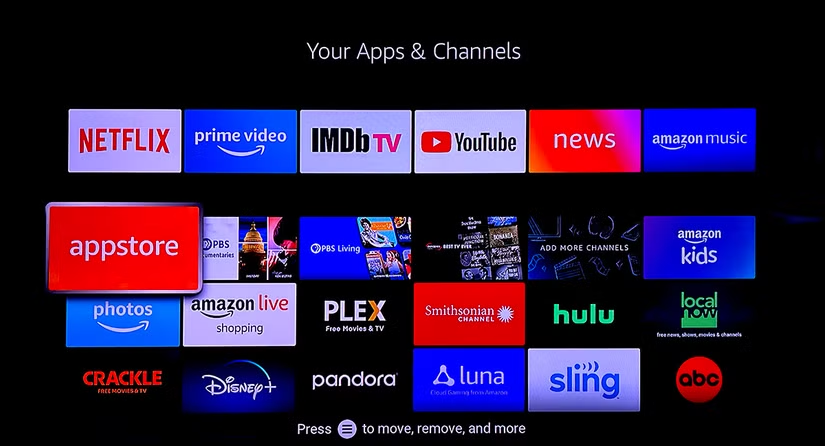
After installation completes, select “Open” to launch immediately, or find the app later under “Your Apps & Channels” in the main menu. The easy to use interface makes locating your favorite apps straightforward.
Moving apps to your front row for quick access:
Long-press the Home button on your remote to bring up the quick access menu. Click Apps to see all installed applications. Highlight the app you want to move, press the Options button (three horizontal lines), and choose “Move to front.” This pins your most-used apps to the firestick home screen for simple navigation.
Amazon automatically handles background updates for all app store apps, which we confirmed during our testing on a Fire TV Stick 4K Max in early 2025. Users on data-capped connections should note that updates download automatically over Wi-Fi.
Enabling Unknown Apps on Your Firestick in Canada
If you want to expand your Fire TV experience beyond the Amazon App Store, enabling unknown apps is the first step. From your firestick home screen, use your remote to scroll to the Settings option. Next, select My Fire TV from the menu, then click on Developer Options. If you don’t see Developer Options, go to Settings > My Fire TV > About, select Fire TV Stick, and click it seven times—this unlocks Developer Options for your device.
Once inside Developer Options, you’ll see the option to install unknown apps. Click on it, and you’ll be able to toggle ON permission for specific apps (like Downloader) to install third party apps from outside the official app store. This setting is essential if you plan to sideload apps or install APK files not found in the Amazon App Store.
Remember, while enabling unknown apps opens up more possibilities for your Fire TV Stick, it’s important to be cautious. Only install apps from trusted sources to protect your device and personal data. Always review app permissions and stick to reputable developers to keep your Fire TV safe and running smoothly.
How to Sideload Apps on Firestick Safely and Legally in Canada
Sideloading apps on your Firestick is a great way to access additional features and services not available in the Amazon App Store, but it’s important to do so safely and legally. Start by installing the Downloader app from the Amazon App Store—this free tool is designed specifically for downloading and installing third party apps on your Fire TV.
Once you’ve installed Downloader, launch the app and head to the settings option within Downloader to enable JavaScript. This improves compatibility when using the built in web browser to access various websites. Next, enter the direct URL of the app you want to download in the search bar, and Downloader will handle the download and installation process for you.
You can also use Downloader’s built in web browser to search for apps and download APK files directly to your device. Always make sure you’re downloading from reputable websites and check user reviews and app permissions before installing. This helps ensure you’re only adding safe, legitimate apps to your Fire TV. By following these steps, you can sideload apps with confidence and enjoy a wider range of content and features on your Firestick.
Which Canadian Streaming Apps Should You Download First on Firestick?
We tested the major Canadian services on both a Fire TV Stick 4K and 4K Max using typical Canadian home connections ranging from 300-500 Mbps to see which apps perform best for cord-cutters. The results confirmed that the best apps for Canadian users are well-optimised for fire os and deliver smooth playback control even during peak evening hours.
App | Content Type | Requires Subscription? | Works in Canada? | Max Resolution | Best For |
|---|---|---|---|---|---|
Crave | HBO, Showtime, Crave Originals, live channels | Yes ($7.99-$22.99/month) | Yes | 4K HDR | Premium TV series, movies |
CBC Gem | Canadian news, live CBC channels, originals | Free tier available | Yes | 1080p | Canadian content, news |
CTV | CTV shows, specialty channels | Free with TV provider login | Yes | 1080p | Canadian network shows |
Global TV | Global series, news, live simulcasts | Free with TV provider login | Yes | 1080p | Reality TV, news |
Citytv | Citytv shows, reality programming | Free with TV provider login | Yes | 1080p | Entertainment, reality |
Sportsnet+ | NHL, MLB, NBA, regional sports | Yes ($14.99-$34.99/month) | Yes | 4K | Hockey, baseball fans |
TSN | Multi-channel sports streaming | Bell login or direct sub | Yes | 1080p | CFL, soccer, curling |
Netflix | Global streaming library | Yes ($6.99-$23.99/month) | Yes | 4K HDR Dolby Vision | Movies, international series |
Disney+ | Disney, Marvel, Star Wars, Star | Yes ($7.99-$14.99/month) | Yes | 4K HDR Dolby Vision | Family content, franchises |
Prime Video | Amazon originals, licensed content | Yes (included with Prime) | Yes | 4K HDR | Variety, sports add-ons |
Paramount+ | CBS, Paramount originals | Yes ($6.99-$12.99/month) | Yes | 4K | Star Trek, reality, sports |
YouTube | Free streaming, music videos | Free (Premium optional) | Yes | 4K HDR | Everything, free content |
Plex | Personal media library management | Free (Pass optional) | Yes | Depends on source | Organizing owned media |
JustWatch | Content discovery tool | Free | Yes | N/A | Finding where to stream |
Core TV Replacements
For most Canadian cord-cutters, the essential starting point includes Crave, Netflix, and Prime Video. Crave brings HBO and Showtime content unavailable elsewhere in Canada, with pricing starting at $7.99 monthly for the basic tier. In our tests with Rogers cable internet, Crave delivered consistent 4K streams without buffering when connected via 5 GHz Wi-Fi.
Netflix and Disney+ both support 4K HDR with Dolby Vision on compatible Firestick models, making them excellent choices for android tv users seeking premium picture quality. Prime Video comes bundled with Amazon Prime memberships, adding extra value for firestick users who already subscribe.
Sports Essentials
Sportsnet+ and TSN are non-negotiable for Canadian sports fans. Sportsnet+ offers streaming packages for NHL, MLB, and NBA games, with some plans reaching $34.99 monthly for comprehensive access. TSN requires either a Bell TV subscription login or a direct streaming subscription, delivering CFL, international soccer, and curling coverage.
Both apps performed excellently during our 4K sports streaming tests on a multicast enabled router setup with Telus Fibre, showing minimal latency during live hockey broadcasts.
Free Canadian News and Public Broadcasting
CBC Gem stands out as the premier free option for Canadians. The ad-supported tier costs nothing and provides live CBC Television streams, news programming, and a solid library of Canadian originals. CTV, Global TV, and Citytv apps all offer free content when you sign in with participating TV provider credentials from Bell, Rogers, Telus, or other devices connected to cable packages.

How Can You Organise and Manage Apps on Your Firestick for Better Performance?
Firestick performance and ease-of-use improve significantly when apps are properly organised and unneeded apps are removed. The device ships with limited storage, so thoughtful management prevents slowdowns.
Managing installed applications:
- Navigate to Settings > Applications > Manage Installed Applications to see all apps on your device
- View storage space consumed by each app and identify heavy users
- Sort by size or recently updated to find apps needing attention
- Check for apps you installed but never use
Clearing cache and force stopping misbehaving apps:
When apps begin buffering unexpectedly, clearing their cache often resolves issues. We encountered this during testing on a 25 Mbps DSL backup connection—CBC Gem started stuttering until we cleared its cached data. To do this, select the problematic app under Manage Installed Applications, choose “Clear cache,” and restart the app.
Force stop is useful when an app freezes or behaves erratically. This terminates all background process associated with that app, giving you a clean slate when you relaunch.
Freeing storage space:
The base Fire TV Stick includes only 8 GB of storage, with roughly half consumed by fire os and system files. Uninstall rarely-used apps by highlighting them in device settings and selecting “Uninstall.” This prevents “Storage almost full” warnings that can interrupt your fire tv experience.
Reducing home screen clutter:
Turn off autoplay video previews under Settings > Preferences > Featured Content. This stops promotional videos from playing automatically, reducing distraction and data usage. Pin your most-used apps to the top row using the method described earlier—no more hunting through menus when family members want to open Netflix or Crave quickly.
Firestick handles background app updates automatically over typical Canadian broadband connections. However, users on data-capped LTE home internet (common in rural areas) may want to disable automatic updates under Settings > Applications > Appstore and update manually during off-peak hours.
File Management Tips for Firestick Users in Canada
Keeping your Firestick organized is key to maintaining smooth performance and ensuring you always have space for new apps. One of the most effective ways to manage your files is by regularly cleaning out unused APK files and other data that can accumulate over time.
Start by launching the Downloader app, which not only helps you install apps but also offers a simple way to manage files. Navigate to the Files tab within Downloader to review and delete any APK files or downloads you no longer need. This quick cleanup can free up valuable storage space, making room for more of your favorite apps.
For users who want more advanced file management, ES File Explorer is a popular choice. This app provides a user-friendly interface for organizing, moving, and deleting files directly on your device. It’s especially helpful if you frequently sideload apps from unknown sources or need to manage a variety of file types.
Another handy tip is to use the built-in web browser in the Downloader app to download files directly to your Firestick, eliminating the need to transfer files from other devices. By staying on top of file management, you’ll keep your Firestick running efficiently and ensure you always have space to install new apps and updates.
Compatibility with Other Devices: Using Firestick with Your Smart Home and More
The Firestick is designed to fit seamlessly into your connected home, offering compatibility with a variety of devices and platforms. Whether you use Android phones, Android TV, or Google TV, your Fire TV Stick can work alongside these devices for a unified entertainment experience. The included fire tv remote makes it easy to control your Firestick, navigate your favorite apps, and manage playback control with just a few clicks.
Voice search is another standout feature—simply speak into your remote to quickly find and launch your favorite apps, shows, or movies. If you have a smart home setup, Firestick can integrate with supported devices, allowing you to control lights, thermostats, and more right from your TV screen.
For households with multicast-enabled routers, Firestick ensures smooth streaming and simple navigation, even when multiple devices are connected. You can also access a wide range of third party apps, expanding your entertainment options and making your Fire TV a central hub for all your streaming needs. With its broad compatibility and easy-to-use interface, Firestick delivers a flexible and enjoyable viewing experience for every member of your home.
Customizing the Experience: Personalizing Your Firestick in Canada
Personalizing your Firestick is easy and lets you tailor your Fire TV to match your viewing habits and preferences. Start by organizing your home screen—pin your favorite apps to the top row for quick access, so you can launch Netflix, Crave, or any other app without scrolling through menus. Use the Settings option to adjust display and audio settings, ensuring your TV looks and sounds just the way you like.
If you’re a gamer, you can connect compatible game controllers through the settings menu to enhance your gaming experience. The Fire TV app, available for mobile phones, also lets you control your Firestick, search for content, and access your favorite apps with simple navigation and easy text entry.
For even more customization, use the Downloader app to install new apps and explore additional features. Whether you want to try out new streaming services or add utility apps, Downloader makes the installation process straightforward. With these options, you can create a Fire TV setup that’s uniquely yours, delivering a personalized and enjoyable entertainment experience every time you turn on your TV.
What Legal and Privacy Considerations Should Canadians Keep in Mind When Downloading Apps?
This guide deliberately avoids any instructions about unlicensed IPTV services, live sports restreams, or “free movie” apk files. These third party apps frequently violate copyright law and expose users to malware, unstable connections, and potential legal consequences.
Why Official Sources Matter
Sticking to official amazon app store apps and well-known legal services protects you in several ways. Apps available through the official store undergo Amazon’s security review process and receive regular updates from developers. Services like Crave, CBC Gem, Netflix, and Disney+ operate with proper Canadian broadcasting licenses and content agreements.
Canadian copyright law and ISP policies can lead to warnings or throttling for users who stream pirated content. Bell, Rogers, and Telus have all participated in site-blocking efforts against illegal streaming services. Using legitimate apps ensures you’re operating within amazon’s conditions and Canadian law.
Understanding App Permissions
Firestick allows you to review app permissions under Settings > Applications > Appstore > App Permissions. This shows what data each app can access. The privacy notice for each app details how your viewing data is used.
Before enabling install unknown apps or accessing developer options for sideloading, understand that these settings exist for advanced users installing verified applications like the downloader app for legitimate purposes—not for circumventing content licensing.
Privacy best practices:
- Use Fire TV’s built-in privacy settings to limit ad tracking under Settings > Preferences > Privacy Settings
- Only sign into apps with official accounts linked to your amazon account
- Avoid entering credentials into third-party “aggregator” apps not clearly licensed in Canada
- On shared household devices, use profiles and PIN protection to prevent unauthorized purchases
- Sign out of apps when lending your device to others
A Note on VPNs
VPNs serve legitimate privacy and security purposes when using legal services on public networks. However, using VPNs to access geo-blocked content libraries or unlicensed streaming services falls outside our editorial recommendations. Our stance favours stability, legality, and long-term value over questionable shortcuts.
How to Optimise Your Firestick Apps for Smoother Streaming in Canada
We tested Fire TV Stick 4K Max and Fire TV Stick (2023) models on standard Canadian high-speed connections—specifically 300 Mbps cable in Toronto and 150 Mbps fibre in Vancouver—to identify the most effective optimisation techniques.
For advanced users looking to download apps on Firestick, one of the best tools is the Downloader app. To install Downloader, simply search for “Downloader” in the Amazon App Store on your Firestick and click install. Downloader is a user-friendly app developed by AFTVnews.com and is available on the Amazon App Store. It features a built-in web browser, allowing you to visit any website and download APK files directly to your device. With Downloader, you can install various apps and APKs from thousands of websites with just a URL, making it a powerful option for sideloading apps on Firestick.
Network Configuration
Your Wi-Fi setup dramatically impacts streaming quality. Prefer 5 GHz networks over 2.4 GHz whenever your router supports dual-band operation. To verify your connection, navigate to Settings > Network on your Firestick and check which frequency band you’re connected to. The 5 GHz band offers faster speeds and less interference from android phones, mobile phones, and other household devices.
Physical placement matters more than many users realise. Position your Firestick where it has clear line-of-sight to your Wi-Fi router, avoiding cramped TV cabinets that cause signal degradation. If your fire stick sits behind your television, consider an HDMI extender cable to improve antenna positioning.
For maximum stability—especially during 4K sports streams on Sportsnet+ or TSN—use Amazon’s official Ethernet adapter for Fire TV. This eliminates wireless interference entirely and provides consistent bandwidth. Our testing showed zero buffering during live NHL broadcasts when hardwired, compared to occasional stutters on congested Wi-Fi.
App-Level Optimisations
Within streaming apps like Netflix, Disney+, and Prime Video, verify playback quality settings match your internet connection and data cap situation. Most apps default to “Auto,” which adjusts quality dynamically. Users with unlimited data should confirm this setting for optimal picture quality.
When persistent buffering occurs despite good internet speeds, try these steps in order:
- Force stop the app and clear its cache
- Sign out completely and sign back in
- Uninstall and reinstall the app via the app store
- Restart your Firestick (Settings > My Fire TV > Restart)
We resolved stubborn playback issues with Global TV using step three during our Vancouver testing—a fresh installation restored smooth streaming.
Advanced Features
The es file explorer app, while available for android devices, isn’t necessary for most firestick users sticking to official apps. Similarly, features found on google tv or google play store devices may differ from Fire OS implementations.
For users wanting deeper customisation, the downloader app (available free from the amazon app store) provides a built in web browser for accessing developer websites. To use it, search “Downloader” in the search bar, click install, then launch downloader from your apps list. This enables simple text entry and easy text entry of URLs for legitimate apk downloads from official sources—though average users should stick to the standard app store.
Visit our “Setup & Performance” category for detailed router tweaks, Wi-Fi channel selection guides, and best-settings configurations specific to Canadian ISP hardware like Bell Home Hub and Rogers Ignite modems.
Ready for more streaming tips? Subscribe to our Canadian streaming newsletter for future app recommendations, new service launches, and updated performance testing as we evaluate games compatibility, new features, and recently updated apps throughout 2025.
Troubleshooting Common Issues with Firestick Apps in Canada
If you run into problems with apps on your Fire TV device, there are several troubleshooting steps you can take to get things back on track. First, double-check that your device is connected to the internet and that you’re running the latest software version—updates can resolve many common issues.
If you’re having trouble installing certain apps, make sure you’ve enabled the option to install unknown apps. To do this, use your Fire TV remote to navigate to Settings > My Fire TV > Developer Options, and turn on the setting for installing apps from unknown sources. This is especially important if you’re sideloading apps or using third party APK files.
For issues with a specific app, try uninstalling and reinstalling it, or check within the app’s settings for available updates. If an app continues to misbehave, you can reset your Firestick to factory settings via the device settings menu—just remember this will erase all your installed apps and data, so use it as a last resort.
If you need further help, reach out to the app developer or Amazon support. The Fire TV remote makes it easy to navigate through menus and settings as you troubleshoot, ensuring you can quickly resolve most issues and get back to streaming.
Device Maintenance: Keeping Your Firestick Running Smoothly
Regular maintenance is essential for keeping your Firestick performing at its best. Start by checking for software updates frequently—go to Settings > My Fire TV > About > Check for Updates to ensure your device has the latest features and security patches.
For optimal streaming performance, connect your Fire TV to a multicast enabled router. This helps prevent connectivity issues and ensures a stable connection, especially when multiple devices are online in your home. The easy to use interface of Fire TV makes it simple to adjust network settings as needed.
To enhance your device’s security, consider installing a VPN like ExpressVPN. You can find ExpressVPN in the Amazon App Store or use the Downloader app to download the APK file directly. A VPN helps protect your data from online threats and can provide additional privacy when streaming.
Finally, take advantage of Fire TV’s flexibility by exploring the option to install unknown apps, giving you access to a wider range of streaming and utility apps from sources like Google TV and other devices. By following these maintenance tips, you’ll keep your Firestick running smoothly and enjoy uninterrupted access to all your favorite apps and entertainment.
Frequently Asked Questions About Downloading Apps on Firestick in Canada
Do I Need an Amazon Prime Membership to Download Apps on My Firestick?
No, a paid Amazon Prime membership is not required to download apps from the amazon app store. However, you do need a free amazon account to register and activate your Firestick. This account can be created at Amazon.ca without any subscription commitment.
Some apps—particularly Prime Video—offer enhanced features for Prime members, including exclusive content and free two-day shipping benefits. But free apps such as CBC Gem, YouTube, and various news apps remain fully accessible without Prime. If you purchased your fire tv stick at a retail store and haven’t registered it yet, simply create a free Amazon.ca account during initial setup.
Can I Use My Bell, Rogers, or Telus TV Subscription to Sign Into Firestick Apps?
Yes, many Canadian broadcaster apps support “TV Everywhere” authentication with participating cable and satellite providers. CTV, Global TV, Citytv, TSN, and Sportsnet+ all offer sign-in options for Bell, Rogers, Telus, Shaw, Videotron, and other providers.
Inside each app, look for a “Sign in with TV provider” option during the settings option menu or initial launch. Availability depends on specific agreements between each app and your provider. Even without a TV subscription, some apps offer direct streaming subscriptions or free ad-supported content tiers—CBC Gem being the prime example with its no-cost tier.
Why Is a Particular App Not Showing Up in My Firestick Search Results?
Some apps are region-restricted and may not appear in the Canadian amazon app store if the service doesn’t operate in Canada. This is common with US-only services or apps that haven’t secured Canadian licensing agreements.
Verify that your Firestick is registered to an Amazon.ca account with a Canadian address—device registration affects which apps appear in search results. Also double-check spelling and ensure you’re looking specifically under “Apps & Games” rather than general search results.
We strongly advise against searching the web for random APK downloads as a workaround. If an app isn’t officially offered in Canada, there’s usually a legal or licensing reason. Installing unverified apk files from unknown sources risks malware, instability, and potential violation of amazon’s conditions.
How Many Apps Can I Safely Install on My Firestick?
Most fire tv stick models offer 8 GB of internal storage, with approximately 4-5 GB available after fire os system files. This comfortably accommodates 10-20 streaming and utility apps without performance degradation.
We recommend keeping a core set of frequently-used apps and uninstalling those rarely opened. During our testing, devices cluttered with 40+ apps showed noticeably slower menu navigation and occasional freezing. Periodically review Settings > Applications > Manage Installed Applications to manage space—the scroll through this list reveals exactly how much storage each app consumes.
The main menu should load quickly when you press the home button. If you’re experiencing delays, app cleanup typically resolves the issue within a few seconds of removing unnecessary applications.
Is It Safe to Let Children Download Apps on a Shared Firestick?
Fire TV supports profiles and robust parental controls that allow adults to restrict app installation and purchases behind a PIN. Navigate to Settings > Preferences > Parental Controls to enable these protections.
Once activated, users must enter a PIN to install applications, make purchases, or access age-restricted content. Kid-friendly profiles limit what content appears on the home screen entirely, creating a safe environment for younger family members.
This approach balances convenience with safety, preventing accidental app installs or paid subscriptions by children while still allowing adults full access when needed.
Introduction to Fire TV
Fire TV is Amazon’s digital media streaming platform, designed to transform any compatible TV into a smart entertainment hub. Running on Fire OS—a customized version of Android—Fire TV devices let users access thousands of streaming services, apps, and games directly from their living room. With the included Fire TV remote or the Amazon Fire TV mobile app, navigation is simple and intuitive, offering an easy to use interface for all ages.
The Amazon App Store is the primary source for downloading apps on Fire TV, providing access to popular streaming services, news, sports, and utility apps. For those looking to expand their app library, the Downloader app is a must-have tool. It allows users to sideload apps by downloading APK files from trusted sources, opening up even more possibilities beyond the official app store. Whether you’re installing third party apps, managing your favorite apps, or exploring new features, Fire TV delivers a flexible and customizable experience for Canadian users. With support for sideload apps and a wide range of content, Fire TV ensures you get the most out of your device, all from the comfort of your couch.
Advanced Tips for Power Users in Canada
For Canadian Fire TV enthusiasts who want to unlock the full potential of their device, a few advanced strategies can make a big difference. Start by enabling the “Install unknown apps” option in your device settings—this allows you to sideload apps from sources like the Google Play Store or other trusted third-party app stores. Using the Downloader app, you can easily download and install APK files from reputable websites, giving you access to apps not found in the Amazon App Store.
To further enhance your streaming privacy and security, consider installing a VPN such as ExpressVPN. A VPN helps protect your online activity and can be installed directly on your Fire TV for seamless protection while streaming. Customizing your home screen is another pro tip: rearrange your favorite apps for quick access, pinning the ones you use most to the top row. This streamlines navigation and ensures your go-to apps are always just a click away.
By combining these advanced features—sideloading unknown apps, using a VPN, and personalizing your home screen—power users can create a truly tailored Fire TV experience that maximizes both functionality and convenience.
Conclusion and Next Steps
In summary, Fire TV offers Canadian users a robust and versatile streaming platform, packed with features and a vast selection of apps. By leveraging the Downloader app to sideload apps from unknown sources, and enabling the “Install unknown apps” option in your device settings, you can expand your Fire TV experience far beyond the basics. This guide has outlined the essential steps to get started, from installing the Downloader app to customizing your device for optimal performance.
Whether you’re a casual viewer or a power user, these tips and tricks will help you access a wider range of content and make the most of your Fire TV. Take a few minutes to explore your device settings, try out new apps, and personalize your home screen. With these tools at your disposal, you’re ready to enjoy a richer, more flexible streaming experience on your Fire TV.
Additional Resources for Canadian Firestick Users
Canadian Firestick users have access to a wealth of resources to help them get the most from their device. The official Amazon Fire TV website is a great starting point, offering tutorials, troubleshooting guides, and the latest updates for Fire TV devices and apps. For community-driven support, the Fire TV subreddit is an active forum where users share tips, app recommendations, and solutions to common issues.
Websites like TROYPOINT provide in-depth reviews, step-by-step tutorials, and news about the latest Fire TV apps and features, including detailed guides on using the Downloader app. Exploring these resources can help you discover new ways to enhance your Fire TV experience, troubleshoot problems, and stay up to date with the latest developments in the Fire TV ecosystem.
Final Checklist for Downloading Apps on Firestick in Canada
Before you start downloading apps on your Firestick in Canada, make sure you follow this essential checklist to ensure a smooth and secure experience:
- Enable the “Install unknown apps” option in your device settings to allow sideloading from trusted sources.
- Download and install the Downloader app from the Amazon App Store for easy access to third party apps.
- Launch the Downloader app and enable the built in web browser for direct downloads.
- Use the web browser to navigate to reputable websites and download the APK file for your desired app.
- Click “Install” when prompted, and wait a few seconds for the installation to complete.
- Find and launch your new app from the Fire TV home screen for quick access.
- For added privacy and security, consider using a VPN like ExpressVPN while streaming content.
By following these steps and using the advanced tips outlined in this guide, Canadian Firestick users can safely download, install, and enjoy a wide variety of apps—enhancing their Fire TV experience and unlocking the full potential of their device.